



Small newsrooms and content teams tend to accumulate visual work quietly. Someone writes the article, then crops the lead image. The same person may resize it for social media, adjust a promotional graphic, prepare a newsletter version, or clean up a product photo before the day is over.
None of those jobs is especially difficult. The problem is the interruption. Opening another application, finding the right asset, making a small edit, exporting it, and then repeating the process for another format can eat into time that would be better spent on reporting, editing, or planning.
AI image tools are useful when they reduce that friction. They are less useful when they encourage teams to generate more material simply because generation is easy.
Know Which Images Should Be Edited
The first decision is editorial, not technical.
A photograph documenting a real event should not be treated like a campaign image or an illustration. Removing a person, changing a location, or adding an object to documentary photography can change what the image appears to prove. That is different from extending the background of an illustration or placing a product into a staged scene.
For promotional and creative material, there is more room to work. A portrait might need a less distracting background. Products photographed against white may need to appear in a home or office setting, and a square image designed for social media may have to become a wide banner without cutting off the subject.
Pixlio AI photo editor is useful for these jobs because it can work from either a written prompt or an existing image. It also gives users access to different image models rather than assuming one model will be equally good at every edit.
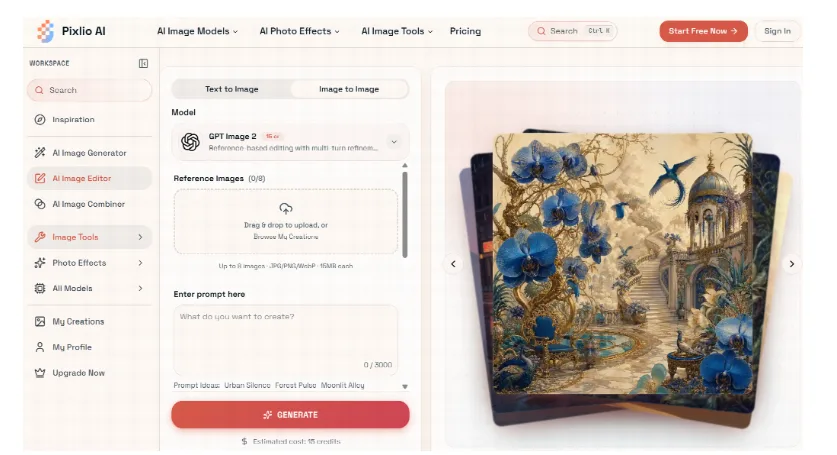
Pixlio’s sleek, intuitive workspace for editing images with flexible prompts, reference images, and multiple AI models.
Some models follow detailed instructions more faithfully. Others are better at retaining faces, products, or the overall look of the source image. If the first attempt changes something it should have preserved, switching models can be more productive than rewriting the same prompt five times.
Give the Edit Boundaries
Much of the result comes down to how the request is phrased.
“Make this photo more professional” sounds reasonable, but leaves many decisions to the model. A request such as “replace the plain wall with a softly lit office and keep the person’s face, clothing, and pose unchanged” gives the edit much clearer limits.
The same applies to the number of changes requested at once. Replacing the background, changing the lighting, modifying the clothing, adding props, and altering the composition in a single pass can work, but the problem comes when the result is nearly right and one detail is wrong. Figuring out which instruction caused the drift is harder with more changes in play.
A smaller sequence of edits is usually easier to control.
Pixlio also lets users adjust things such as aspect ratio, output format, style, and seed, then continue working from a generated result. That fits real publishing workflows better than creating isolated images from scratch. The same source can become a square social visual, a wider article image, and a campaign asset without rebuilding the concept each time.
The final review still matters. Generative tools sometimes alter details outside the area being edited. Text may become unreadable. A logo can shift slightly. Faces, reflections, hands, packaging, or small background objects may change without being requested. Check the full frame before publishing, even when the edit looks correct at first glance.
Compositing Without the Usual Setup
Combining separate assets is another task that often takes longer than expected.
Consider a small retailer with a clean studio photograph of a product but no lifestyle photography. Or a content team with a portrait that needs to sit naturally against a different setting. Manual compositing usually means masking the subject, correcting the scale, matching perspective, recreating shadows, balancing the light, and cleaning up the edges.
That is a lot of preparation for an image that may only be used in a campaign draft or social post.
Using AI to combine multiple images can remove much of that setup. Pixlio includes guided options for placing a product into a scene, moving a person or subject into another environment, and creating more experimental blends. Users can add instructions when the composition needs tighter direction.

Combining a studio product shot with a lifestyle scene while preserving natural scale, lighting, perspective, and shadows.
The difference between a useful composite and an obvious cut-and-paste job usually comes down to small visual relationships. Is the subject the right size for the room? Does the light hit it from the same direction? Do the shadows make sense? Those details matter more than the simple fact that two images have been merged.
Keep the Workflow Simple
AI image editing does not need to become a complicated production system.
Keep the original file. Make deliberate edits. Compare the result with the source. Check important text, logos, faces, product details, and locations before publishing. If generated imagery is being used in an editorial setting, follow the publication’s own standards for disclosure and image manipulation.
Limit the number of variations, too. Generating fifteen versions may feel productive, but it often creates a different problem: someone still has to review fifteen versions.
For many everyday jobs, two or three focused attempts are enough. That is where tools like these save time for a small team. They reduce the mechanical work around preparing and adapting visuals, while the editorial decisions stay with the people responsible for the final piece.
