



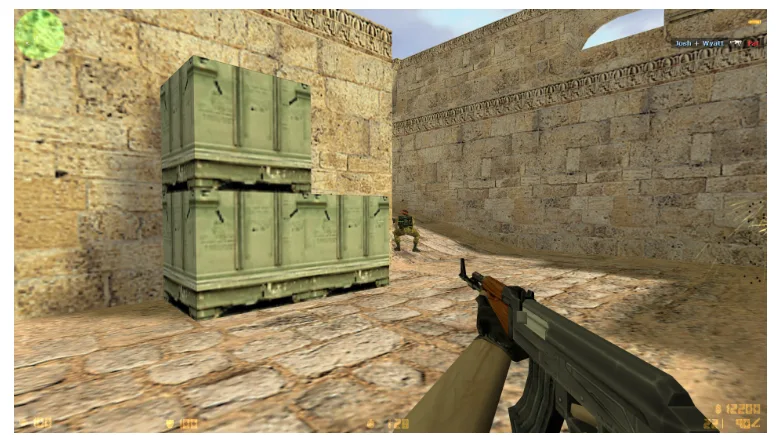
Do you remember the chaotic noise of dusty internet cafes, the click of mechanical switches, and the iconic thrill of clutching a 1v5 round on de_dust2? Back in the golden era, getting silky-smooth performance in your favorite shooter was as simple as turning on a CRT monitor and launching the game. Fast forward to today, and you are running a high-end gaming PC with Windows 10 or Windows 11 – yet somehow, your frame rate drops, stutters, or stays locked at a frustrating 60 frames per second. It feels wrong that a legendary title from 2003 could struggle on hardware built for modern AAA blockbusters.
Do not worry, you are far from alone in this struggle. Modern operating systems handle legacy graphics rendering, multi-core processors, and display refresh rates very differently than classic systems did. In this practical guide, we will walk you through every step required to eliminate input lag, unlock your display performance, and secure a rock-solid frame rate on modern Windows installations.
Why FPS Drops in Counter-Strike 1.6 on Modern PCs
Understanding why an older masterpiece lags on modern hardware requires looking under the hood of contemporary operating systems. When GoldSrc – the engine powering this tactical shooter – was created, multi-core CPUs and modern graphics architectures did not exist. Today, dedicated graphics cards from NVIDIA, AMD, and Intel often fail to recognize classic games as demanding tasks. As a result, your GPU might remain in a low-power state, causing unexpected stuttering during intense firefights.
Furthermore, Windows 10 and Windows 11 introduce aggressive background indexing, modern display compositing, and game bar overlays that actively interfere with legacy OpenGL rendering. Vertical Sync settings in modern display control panels often force the game to cap out at 60 Hz by default. Combine that with high-DPI scaling artifacts on 1080p or 4K monitors, and you end up with an unplayable experience. Fortunately, fixing these modern bottlenecks is surprisingly straightforward once you know where to look.
Checking System Requirements and Computer Health
Before diving into complex registry tweaks and game files, you need to ensure your machine is running at peak physical and software health. Even though the hardware demands of this addictive shooter are minimal by modern standards, background clutter can easily destroy real-time rendering performance.
First, inspect your active background processes using Task Manager. Resource-heavy web browsers, streaming applications, and cloud synchronization tools can consume precious CPU cycles and RAM bandwidth. Make sure to disable unnecessary startup programs that drain system resources. Next, monitor your CPU and GPU temperatures. If your laptop or desktop accumulates dust inside cooling channels, thermal throttling will force your processor to drop clock speeds during extended sessions, leading to sudden frame drops in middle of matches. A clean, well-ventilated PC is the baseline for high-performance gaming.
Choosing the Right Counter-Strike 1.6 Build for Gaming
Not all game installations are created equal. Across the web, you can find thousands of customized client builds modified with custom skins, bloated scripts, broken DLL files, and intrusive background code. Playing on a modified client almost guarantees low frame rates, unexpected crashes, and corrupted configuration files.
To achieve maximum performance and flawless compatibility on modern operating systems, you must start with a clean foundation. While there are countless custom builds circulating across the internet, we strongly recommend that you obtain a clean CS 1.6 original build for the highest quality gameplay experience. Using a pristine build ensures that your engine files remain untouched, server scripts function properly, and modern engine wrappers run without conflicts.
Selecting Optimal Graphics Settings in CS 1.6
Once you have a clean installation, the next step is optimizing the in-game video setup. The video settings menu directly dictates how your graphics card interacts with the GoldSrc engine.
Open your game settings, navigate to the Video tab, and adjust the following parameters:
- Renderer: Set this strictly to OpenGL. Never use Software mode or D3D, as they cause massive performance drops and graphical bugs on modern GPUs.
- Resolution: Choose a resolution that matches your display aspect ratio or preference. Classic resolutions like 800×600 or 1024×768 are favored by competitive players for wider player models, but native resolutions work fine on modern rigs.
- Color Depth: Set this to 32-bit for proper color rendering and smooth visual performance.
- Low Video Quality / HD Models: Uncheck HD models if your client offers it. Classic low-polygon models load faster and keep your frame times consistent during chaotic smoke grenade deployments.
Configuring Game Launch Options
Launch options allow you to command the game engine before it even opens, bypassing default operating system restrictions and forcing optimal resource allocation.
If you launch the game via Steam or a shortcut, right-click the application icon, open Properties, and set your launch parameters as follows:
-noforcemparms -noforcemspd -noforcemaccel -freq 144 -nofbo -low -nomsaa
Let us break down what these essential commands do for your system:
- -noforcemparms -noforcemspd -noforcemaccel: These three parameters disable Windows mouse acceleration entirely, ensuring precise 1:1 raw mouse input for flawless muscle memory.
- -freq 144: Forces the game to run at your monitor’s actual refresh rate (replace 144 with 60, 75, 120, 240, or 360 according to your monitor specifications).
- -nofbo: Disables the legacy Frame Buffer Object wrapper introduced in later updates, which often causes blurriness and artificial frame limits.
- -nomsaa: Disables forced engine anti-aliasing to free up GPU fill rate and eliminate input lag.
Tweaking Configuration via the config.cfg File
Your configuration file stores the heart of your client variables. Editing these parameters directly through the developer console or inside the file will dramatically improve your networking rates and frame stability.
Execute or add the following console commands:
- fps_max 99.5: Unlocks the internal frame cap. For classic physics stability, 99.5 or 101 is the gold standard for flawless jump-stats and movement mechanics.
- cl_cmdrate 101 and cl_updaterate 101: Aligns your client communication rate with high-performance tick servers.
- rate 25000: Ensures maximum bandwidth allocation between your client and game servers, preventing network loss.
- gl_vsync 0: Disables engine-level vertical synchronization immediately.
- gl_ansio 0: Disables anisotropic filtering to reduce frame latency.
Optimizing Windows 10 and Windows 11 for Gaming
Modern Microsoft operating systems prioritize energy saving and background apps over legacy game processing. You need to adjust your system environment so that your hardware dedicates every cycle to your match. If you want a smooth experience from the start, getting a properly optimized Download CS 1.6 for PC package configured for modern OS architectures makes setup effortless.
Take these crucial steps inside your operating system:
- Enable Game Mode: Open Windows Settings, navigate to Gaming > Game Mode, and toggle it ON. This prioritizes system resources for active gaming tasks.
- Disable Fullscreen Optimizations: Locate your game executable (hl.exe), right-click and choose Properties, select the Compatibility tab, check “Disable fullscreen optimizations”, and set high DPI scaling override to Application.
- Power Plan Configuration: Open Control Panel > Power Options and switch your power plan to “High Performance”. This prevents your CPU cores from parking or dropping clock frequencies during matches.
- Disable Overlay Recording: In Windows Settings, turn off Xbox Game Bar completely to eliminate background overlay stuttering.
Updating Graphics Card Drivers and DirectX Components
Even though this shooter relies heavily on OpenGL, modern GPU drivers control how legacy calls translate to your display hardware. Outdated graphics drivers can cause severe screen tearing, micro-stutters, and unexpected crashing.
Visit the official website of your graphics card manufacturer (NVIDIA, AMD, or Intel) and download the latest driver package for your GPU model. Perform a clean driver installation to clear out old registry conflicts. Additionally, ensure your system has legacy DirectX runtime libraries installed. While modern systems ship with DirectX 12 pre-installed, legacy games often rely on older DirectX 9 runtime DLL files to handle audio processing and windowed rendering modes smoothly.
Common Errors Reducing FPS and How to Fix Them
Even after thorough optimization, specific technical quirks can randomly crop up on modern systems. Here are the most frequent culprits and their remedies:
- Locked at 60 FPS: This almost always means Vertical Sync is forced on inside your GPU Control Panel. Open your GPU panel, find settings for hl.exe, and set Vertical Sync to “Off”.
- Micro-stutters despite high frame rate: This usually occurs when dynamic power management drops CPU frequencies. Verify that your Windows power plan is on High Performance and check your CPU affinity in Task Manager to assign all CPU cores to the executable.
- Black side bars or stretched screen issues: Adjust scaling options inside your graphics control panel under display settings to “Full-screen” or “Aspect ratio”.
- Persistent compatibility glitches: If you still experience unexpected errors or stuttering after trying all tweaks, you can Download CS 1.6 Windows 11 customized with pre-applied modern OpenGL fixes and compatibility patches built specifically for Microsoft’s latest OS.
Mastering these tweaks guarantees that your gameplay will be smooth, responsive, and completely lag-free. With your frame rate unlocked, mouse input perfectly raw, and modern bottlenecks eliminated, you are ready to dominate every match with pinpoint accuracy. Grab your mouse, jump into your favorite server, connect with the global gaming community, and experience pure tactical action exactly as it was meant to be played!
