



Cross-border teams rely heavily on messaging apps, but dependable communication involves much more than installing an application and signing in. Employees may work from different countries, use different operating systems, switch between mobile and desktop devices, and connect through networks that vary widely in speed and reliability.
These differences can create small problems that quickly become operational distractions. Notifications may behave differently on each device, files may be downloaded into inconsistent folders, old sessions can remain active, and employees may install different versions of the same application.
For multilingual teams, language adds another layer of complexity. An employee may use an English operating system while preferring a Chinese-language interface inside a messaging app, while another team member may use the same account primarily from a Windows desktop.
A reliable messaging setup therefore requires a consistent approach to devices, installation, connectivity, privacy, file handling, and account recovery.

Why Cross-Border Messaging Requires More Than an App
Messaging platforms make international communication easier because teams no longer need to depend on one physical location or one device.
A project manager in Hong Kong might answer messages from a smartphone while commuting. A colleague in Taiwan may work primarily from a Windows laptop. Another team member traveling internationally might rely on hotel Wi-Fi, mobile broadband, or a temporary computer.
The application may be the same, but the operating environment is not.
That matters because communication problems are often caused by configuration rather than the messaging service itself.
For example, a desktop computer may have notifications disabled at the operating-system level even though alerts are enabled inside the app. A phone may automatically download large media files while a laptop does not. One employee may be using a recently updated application while another is working with an older interface.
A practical cross-border communication strategy should therefore answer several questions:
- Which devices are allowed to access the account?
- Which version of the application should employees use?
- How should software be installed and updated?
- Which notifications are important?
- Where should downloaded files be stored?
- How should old sessions be removed?
- What happens when a phone or computer is replaced?
Answering these questions creates consistency without requiring every employee to use identical hardware.
Decide Which Devices Need Messaging Access
The easiest way to manage a messaging environment is to avoid connecting unnecessary devices.
A smartphone is usually the most convenient option for immediate communication. It remains available while employees are traveling, attending meetings, or working away from a desk.
Desktop and laptop computers serve a different purpose. Longer responses are easier to type with a physical keyboard, and documents are generally easier to review, rename, organize, and transfer from a larger screen.
Tablets may be useful as secondary devices, but they should not automatically be connected simply because the application supports them.
Before adding another device, teams should ask whether it actually improves the workflow.
Each additional login creates another session that may need to be reviewed later. A temporary laptop used during travel, for example, should not remain connected indefinitely after an employee returns to their normal workstation.
It can help to classify devices into simple categories.
Primary devices are the phone and computer used every day.
Secondary devices are tablets, home computers, or backup laptops used regularly but less frequently.
Temporary devices are machines used for travel, short-term projects, or emergency access.
Temporary sessions deserve particular attention because they are the easiest to forget.
Verify the App Before Installing It
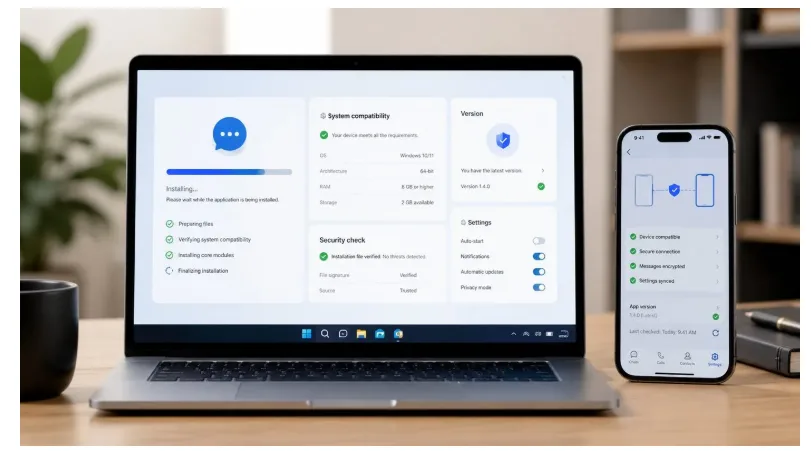
Software installation is one of the most important parts of a reliable messaging workflow.
Before installing a messaging application, users should confirm that they are choosing the correct version for their operating system. Windows, macOS, Android, and iOS may use different installation methods and packages.
Users should also be cautious about unfamiliar download mirrors, bundled installers, and third-party websites that present themselves in a way that could be mistaken for an official service.
A useful installation process begins by identifying:
- the target operating system;
- the required application version;
- the expected installer type;
- the permissions the application will request;
- and the method used for future updates.
For Chinese-speaking users preparing a new phone or computer, searches such as telegram 下载 often reflect a practical need to identify the appropriate mobile or desktop version and understand the installation process before configuring the application.
After installing any messaging app, users should open it and review the basic settings instead of immediately assuming that the default configuration is ideal.
Notification access, media permissions, microphone and camera access, download behavior, and startup preferences may all deserve attention.
The installation should be treated as the beginning of configuration, not the end of it.
Plan for Different Network Conditions
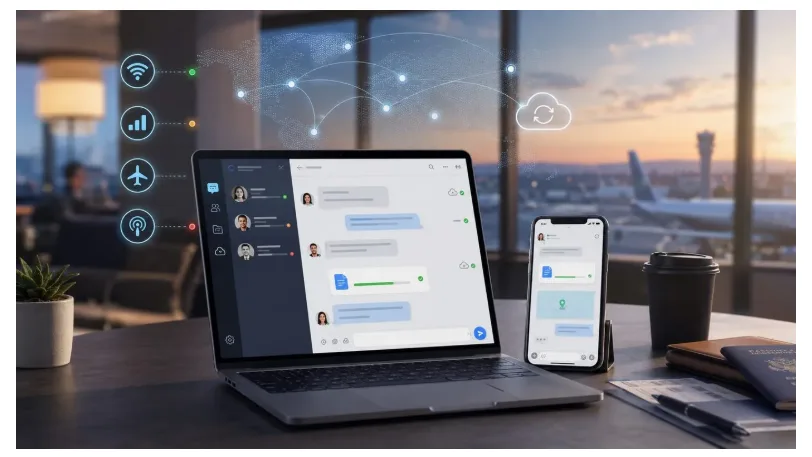
Cross-border teams do not always work under identical network conditions.
An employee in an office may have a stable fiber connection, while another person may rely on mobile data, public Wi-Fi, or a hotel network while traveling.
This can affect both messaging performance and device behavior.
Large attachments are one common issue. Automatically downloading videos, images, or documents may be convenient on a fast office network but inefficient on mobile data.
Background updates can create similar problems. A desktop application may download an update with little impact on a fixed broadband connection, while the same process may consume a noticeable amount of bandwidth on a mobile hotspot.
Teams should therefore consider different connection scenarios.
Employees who travel frequently may want to disable automatic media downloads on mobile networks. Important files can be downloaded manually when required.
Public networks deserve additional caution. Employees should avoid treating every available Wi-Fi network as equally trustworthy and should be careful when accessing sensitive accounts from shared or unfamiliar environments.
Messaging reliability is partly a connectivity issue, so network conditions should be included in the workflow rather than treated as an unrelated technical problem.
Keep Desktop and Mobile Settings Consistent
A messaging application does not need to behave identically on every device, but important settings should follow a consistent logic.
Notifications are a good example.
A phone may need immediate alerts because the user is away from a desk. The same employee may prefer fewer desktop notifications while already working inside the application.
Instead of enabling every alert everywhere, teams can identify which conversations genuinely require immediate attention.
Direct messages and urgent project channels may remain enabled. Large groups, announcements, and lower-priority discussions may be muted or reviewed manually.
Download settings can also differ by device.
A desktop computer may have enough storage for documents and media, while a phone may need stricter limits on automatic downloads.
For users who regularly move between computers and phones, reviewing a Telegram desktop setup can also help clarify how desktop access, notifications, file handling, and device sessions fit into a broader cross-device workflow.
Language preferences are another consideration for multilingual teams. Employees should be able to navigate privacy, security, notification, and device-management settings confidently. Familiar terminology becomes especially important when users are adjusting account-level controls.
The objective is not identical settings. It is predictable settings.
Employees should understand why a particular device behaves differently rather than discovering those differences only when something goes wrong.
Protect Accounts on Shared or Temporary Devices
Cross-device access provides flexibility, but it also makes session management important.
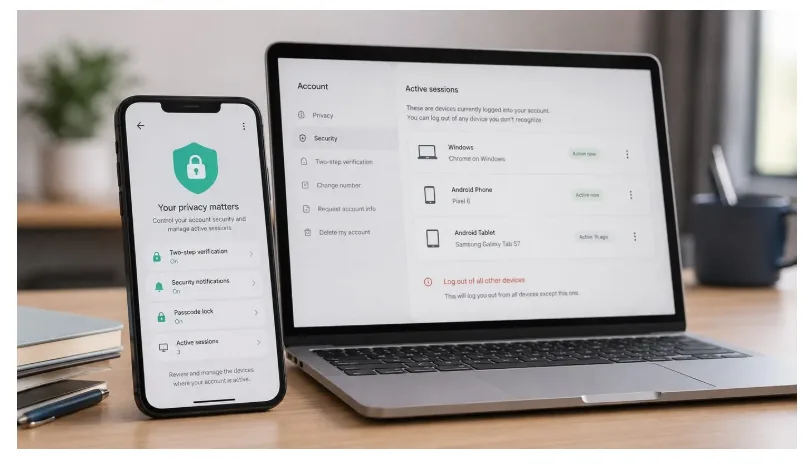
Whenever an account is opened on another computer, that device may remain authorized until the session is manually removed or expires according to the service’s behavior.
Shared and temporary computers deserve the most attention.
Employees should avoid saving account credentials unnecessarily on machines that other people can access. If a temporary device must be used, the session should be reviewed and terminated when the work is finished.
Teams should periodically check active sessions and look for devices they no longer recognize or use.
Useful account-security habits include:
- reviewing active devices regularly;
- removing obsolete sessions;
- enabling additional verification options where available;
- protecting recovery information;
- limiting sensitive notification previews;
- and locking work devices when unattended.
Employees should also know how to respond when an unfamiliar session appears.
The safest response is to investigate promptly, remove access if necessary, and review account-security settings rather than assuming the session belongs to an old device.
Security processes work best when they are routine rather than emergency measures.
Create a Clear File and Download Workflow
Messaging applications are frequently used to exchange documents, photos, screenshots, PDFs, and other work files.
Without a simple process, those files quickly become difficult to manage.
A document may be downloaded on a phone, downloaded again on a Windows computer, renamed, edited, and then sent back to another employee. Within a few days, several slightly different copies may exist.
Teams can reduce this problem by deciding where important files should ultimately live.
Messaging apps work well for delivery and quick discussion, but they are not always the best permanent repository for business documents.
Important files should usually be moved into an organized project folder, document-management system, or approved cloud storage location.
File names should also make sense outside the conversation where they originated.
Instead of names such as:
final.pdf
final-new.pdf
final2.pdf
teams can use a predictable format that includes a project name, document type, date, or version number.
Automatic media downloads should also be reviewed. Saving every image and video may fill local storage while making important documents harder to find.
Finally, unexpected attachments should be treated carefully. A familiar messaging platform does not automatically make every received file safe.
Prepare for Device Replacement and Account Recovery
Phones get lost. Laptops fail. Employees replace computers. People change roles.
A good messaging workflow anticipates these events.
When an employee moves to a new device, the process should include more than reinstalling the app.
The old device should be reviewed and removed from active sessions when appropriate. The new application should be updated, permissions should be checked, and notification and download settings should be configured again.
Recovery information also matters.
Employees should know which recovery methods are associated with their accounts and should avoid relying on information they may no longer be able to access.
When staff leave a company or change responsibilities, account and device access should also be reviewed as part of the transition.
The same principle applies to damaged or stolen devices. Teams should know how to terminate an old session without needing physical access to the device.
Planning these steps in advance can turn device replacement into a routine administrative task rather than a security incident.
A Simple Cross-Border Messaging Checklist
Smaller teams do not need an extensive technology policy to improve messaging reliability.
A short checklist can cover most routine situations.
When adding or replacing a device, review the following:
- Confirm the operating system and application compatibility.
- Verify the application version before installation.
- Use an appropriate and trusted installation source.
- Review language and interface preferences.
- Configure notifications for the role of that device.
- Check automatic media and file-download behavior.
- Review privacy and account-security settings.
- Confirm active sessions and remove obsolete devices.
- Decide where work files should be stored permanently.
- Understand how application updates are handled.
- Review account recovery information.
- Remove temporary sessions after they are no longer needed.
The checklist can be adapted to different organizations, but the important part is consistency.
When employees follow the same basic process, problems become easier to identify and correct.
Build Reliability Around the Workflow
Reliable cross-border messaging does not depend on finding one perfect application.
It depends on how the application is installed, configured, maintained, and used across different devices and network conditions.
Multilingual teams benefit from a particularly structured approach because employees may be working across different regions, operating systems, languages, and connectivity environments.
By reviewing installation sources, controlling notifications and downloads, managing active sessions, preparing for device replacement, and establishing a clear file workflow, teams can make everyday communication more predictable.
The result is not simply a better messaging setup. It is a more resilient communication process that continues to work as employees, devices, and locations change.
