



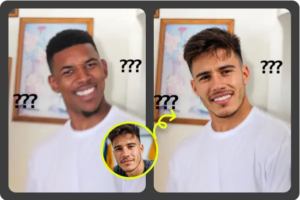
Reaction GIFs work because they say the thing faster than you can type it. A good eye roll, shocked stare, nervous smile, or slow blink can carry a whole conversation. When you add a face swap, the joke gets more personal, as long as the GIF still looks clean and the expression still reads well.
I’ve made face swapped GIFs for group chats, launch posts, and silly team replies, and the best ones usually start with a simple clip. You don’t need a long scene or perfect lighting, but you do need a clear face and a strong reaction. A tool made for GIF Face Swap is useful because it handles the moving frames for you instead of forcing you to edit each frame by hand.
The basic process is simple: pick a short GIF, upload the face you want to use, let the AI process it, then review the result before saving. I like using EasyFaceSwap for this type of quick edit because the workflow is direct, and you can see fast whether your source GIF is worth keeping or replacing. The real skill is not just pressing the swap button, but choosing the right material and knowing when a result is good enough to share.
Start With the Right Reaction GIF
Your source GIF matters more than most people think. AI face swap tools can do a lot, but they still work best when the original face is visible, front facing, and not covered by hands, hair, sunglasses, or heavy motion blur. If the person in the GIF turns their head too far or moves through strong shadows, the swap may flicker or lose detail.
Shorter is usually better. A reaction GIF that lasts two to four seconds gives you enough time for the emotion to land without making the file too large or the face swap too unstable. I’ve had the best results with clips where the face stays in a similar position and the expression changes clearly, such as a grin turning into shock or a calm look turning into panic.
Think about the final use before you choose the GIF. A meme for a private chat can be rougher and still work because the audience knows the joke. A GIF for a brand account, newsletter, or public post needs cleaner edges, better timing, and a face that doesn’t look strange when compressed.
It also helps to choose a reaction that matches the face you’re adding. If the face photo is calm and straight on, it may look odd on a GIF with a huge scream or extreme head turn. A slight smile, raised eyebrow, or deadpan stare often swaps more naturally because the AI has less extreme mouth and cheek movement to rebuild.
Create the AI Face Swap
Once you have your reaction GIF, prepare the face image. Use a clear photo with one face in frame, good lighting, and no strong filter. The person should face the camera, and the image should show the full forehead, chin, and both sides of the face. Cropped selfies can work, but if the jaw or hairline is missing, the swap may look less stable.
Upload the GIF first, then upload the face image. Most AI tools will detect the main face in the GIF and map the new face across the frames. If the GIF has more than one face, check that the tool selected the correct person. Some reaction GIFs include background people or quick cuts, and those can confuse the detection if the main face is small.
After processing, play the result from start to finish at least twice. The first watch tells you if the joke lands. The second watch tells you if the face holds up. Look closely at the eyes, mouth, hairline, and jaw during movement. Small flaws are normal, especially in a fast meme GIF, but big jumps or warped expressions will distract from the reaction.
If the swap looks wrong, don’t keep forcing the same files. Try a cleaner face photo first, because that’s often the fastest fix. If that doesn’t help, change the GIF. In my experience, a poor source GIF wastes more time than any other part of the process.
You may also need to trim the GIF after the swap. Many reaction clips include a lead in or extra frames after the main expression. Cutting those parts makes the GIF feel sharper and reduces file size. A tight loop also makes the reaction more satisfying because the emotion repeats at the right moment.
Tips and Best Practices
A face swapped reaction GIF should feel funny or expressive before it feels technical. If people notice the swap before they understand the reaction, the edit probably needs work. Clean source files, simple motion, and a strong expression matter more than chasing a perfect face match.
Here’s a quick guide I use when deciding if a GIF is worth editing:
| Element | Best choice | Why it matters |
|---|---|---|
| GIF length | 2 to 4 seconds | Keeps the reaction tight and easy to share |
| Face angle | Mostly front facing | Reduces warping and flicker |
| Lighting | Even and clear | Helps the AI match skin and features |
| Expression | Easy to read | Makes the joke land fast |
| Background | Not too busy | Keeps focus on the face |
Keep the face image natural. Heavy beauty filters, extreme contrast, or cartoon effects can make the swap look rubbery. A normal phone photo in daylight often works better than a polished portrait because the AI has clear details to track without strange smoothing.
Pay attention to file size too. Some chat apps and social platforms compress GIFs hard, which can make small face issues worse. If the final file is huge, trim the clip or reduce its dimensions rather than lowering quality too much. A smaller, cleaner GIF usually looks better than a large one that gets crushed by compression.
Test the GIF where you plan to use it. A GIF that looks fine on a desktop preview may look darker or blurrier inside a messaging app. I usually send a private test first, especially if the GIF is going into a campaign, community post, or anything beyond a casual chat.
Respect consent and context. Face swap GIFs can be funny, but they can also feel invasive if you use someone’s face without permission. For friends or coworkers, ask first if there’s any doubt. For public use, avoid making someone appear to say, do, or feel something that could harm their reputation.
Common Mistakes
The most common mistake is starting with a GIF that has too much movement. Fast head turns, flashing lights, camera shake, and motion blur can all make the swapped face jump around. If the original face is hard for you to see clearly, the AI will likely struggle too.
Another mistake is using a face photo with a strong angle. A dramatic side profile, tilted selfie, or image taken from below may look fine as a photo, but it gives the AI less balanced information. A straight, evenly lit image gives the tool a better base for eyes, nose, mouth, and face shape.
People also forget to check the expression. If the original GIF has a wide open mouth and the new face photo has closed lips, the result can look strange during speech or laughter. You don’t need the exact same expression, but the closer the mood and mouth shape are, the more natural the result tends to be.
Overediting is another trap. Adding filters, stickers, text, sharpening, and color changes after the swap can make the face look less realistic. If you want to add a caption, keep it short and place it where it doesn’t cover the face. The reaction should stay as the main focus.
A final mistake is sharing the first output without reviewing the loop. GIFs repeat, so one bad frame can become very noticeable. Watch the loop several times and look for a flicker at the start or end. If the transition feels rough, trim one or two frames until the loop feels smoother.
Conclusion
Creating a reaction GIF with an AI face swap is easy, but creating one that people actually enjoy takes a bit of judgment. Start with a clear, short reaction GIF, use a natural face photo, review the motion, and trim the result so the expression lands fast. Those small choices make the difference between a throwaway edit and a GIF that gets saved, shared, and reused.
The best results usually come from simple clips with clear faces and obvious emotion. Don’t fight a messy source file, and don’t expect AI to fix every blur, shadow, or extreme head turn. Pick strong material, keep the edit clean, and your face swapped reaction GIF will feel natural enough to be funny instead of distracting.
The post Create a Reaction GIF with AI Face Swap appeared first on PHIMDACAP.COM.
