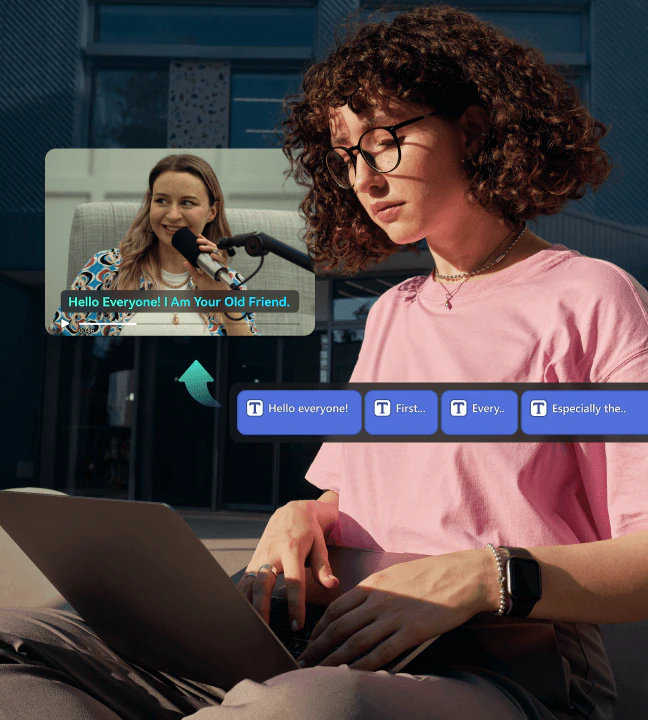

I Spent 24 Hours Mastering Video Editing with Filmora AI Features
Introduction
One of the most innovative tools that help creators streamline their workflow is Wondershare Filmora’s text into speech feature. This advanced AI-driven tool allows users to convert written text into lifelike speech, eliminating the need for professional voiceovers or expensive recording equipment.
With Wondershare Filmora’s text into speech feature, anyone can create high-quality narration effortlessly. Whether you are making YouTube videos, social media content, explainer animations, or e-learning materials, this tool makes adding voiceovers seamless and efficient. Let’s explore how this feature works, its benefits, and why it is an essential addition to Wondershare Filmora’s robust editing suite.

Understanding Wondershare Filmora’s Text into Speech Feature
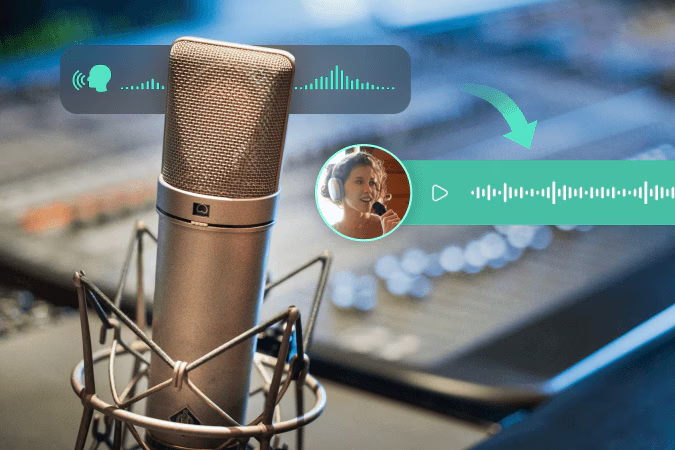
The text into speech function in Wondershare Filmora is designed to convert typed text into spoken words using advanced AI technology. This feature is incredibly useful for creators who want to add voiceovers to their videos but lack the time, resources, or confidence to record their own voice. Instead of manually recording narration, users can simply input text, select a voice, and generate high-quality speech in seconds.
With a wide range of voices, languages, and customization options, Wondershare Filmora’s text in to speech tool provides an effortless way to create engaging and professional-sounding content without needing external voice actors or expensive software.
Key Features of Wondershare Filmora’s Text in to Speech Tool
- Multiple Voice Options
Wondershare Filmora offers a variety of AI-generated voices, including male and female tones, different age groups, and regional accents. This allows users to find a voice that perfectly matches the tone of their content. - Multi-Language Support
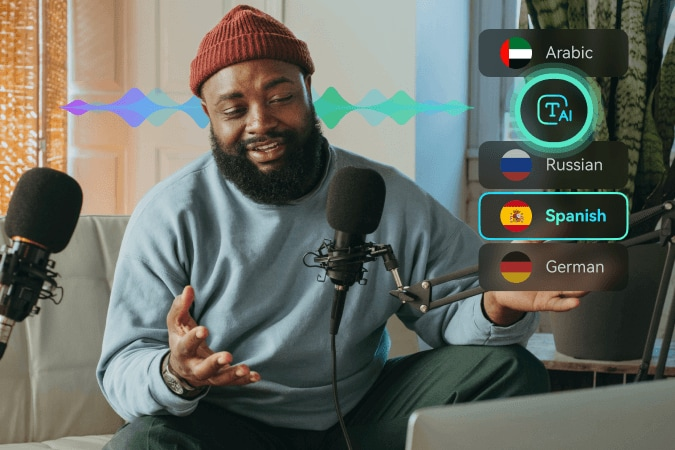
With support for multiple languages, this feature is ideal for international content creators, businesses, and educators who want to reach a global audience. - Realistic and Natural-Sounding Voices
Unlike robotic-sounding traditional TTS tools, Wondershare Filmora’s text in to speech feature uses advanced AI to generate realistic, human-like speech that enhances video narration. - Adjustable Speech Settings
Users can customize the speed, pitch, and volume of the generated speech to ensure it fits seamlessly with the video’s pacing and style. - Seamless Integration with Filmora
The text in to speech tool is built directly into Wondershare Filmora, allowing for quick and easy voiceover integration without needing third-party applications.
How to Use Wondershare Filmora’s Text in to Speech Feature
Adding AI-generated narration to videos using Wondershare Filmora’s text in to speech tool is incredibly simple. Here’s a step-by-step guide:
- Open Wondershare Filmora
Launch the software and import your media files into the timeline. - Add Text to Your Project
Click on the text editor and type in the script you want to convert into speech. - Select the Text in to Speech Option
Choose the text in to speech feature, and a menu will appear with different voice options, languages, and tone settings. - Customize the Voice Output
Adjust the speed, pitch, and volume of the voice to match your video’s tone. - Preview and Apply
Listen to the generated speech, make any necessary adjustments, and then apply it to your timeline. - Export Your Video
Once you’re satisfied with the narration, finalize your video and export it in your desired format.
Benefits of Using Wondershare Filmora’s Text in to Speech Feature
- Saves Time and Effort
Traditional voiceover recording can be time-consuming and require multiple takes. With the text in to speech feature, users can generate a high-quality voiceover in seconds. - Cost-Effective Solution
Hiring a professional voice artist or investing in a home recording setup can be expensive. This feature provides a budget-friendly alternative without compromising quality. - Ideal for Multilingual Content
Businesses, educators, and marketers can easily create content in multiple languages, expanding their reach without hiring multiple voice actors. - Accessibility for All Users
For individuals who may not be comfortable recording their own voice, the text in to speech tool provides an easy way to add narration to their videos. - Enhances Video Engagement
Videos with narration are often more engaging and informative than those without. This feature ensures your content is both professional and captivating.
Use Cases for Filmora’s Text in to Speech Feature
- YouTube Content Creation
YouTubers can use the text in to speech tool to create voiceovers for educational videos, storytelling, or product reviews. - E-Learning and Online Courses
Educators can produce clear and professional narration for online tutorials and courses without needing to record audio manually. - Marketing and Advertisements
Businesses can create professional promotional videos with AI-generated voiceovers, maintaining consistency across multiple campaigns. - Social Media Content
Short videos for platforms like TikTok, Instagram, and Facebook can quickly add voiceovers using the text in to speech tool without extra recording equipment. - Audiobooks and Storytelling
Creators working on digital storytelling or audiobook projects can use Filmora’s AI voices to narrate their content professionally.
Final Thoughts
Wondershare Filmora’s text in to speech feature is a game-changer for video creators looking for an easy, affordable, and high-quality solution for adding narration. With multiple voice options, multilingual support, and customizable settings, this tool provides everything you need to enhance your video projects with professional-sounding voiceovers.
Whether you’re a YouTuber, educator, marketer, or social media creator, Wondershare Filmora’s text in to speech feature allows you to streamline your workflow and produce engaging content with ease. If you haven’t tried it yet, now is the perfect time to explore its capabilities and take your video editing to the next level.