

You don’t need a System76 laptop to take advantage of this user-friendly distro.

The subject of today’s Linux distro review is perhaps one of a kind—as far as we know, Pop!_OS is the first Linux distribution to be created and maintained by a hardware OEM manufacturer. At the very least, it’s the first one anyone has taken seriously.
That hardware manufacturer is System76, probably the world’s best-known Linux-only laptop manufacturer. Some larger OEMs offer Linux as an alternative operating system on a few models—but System76 sells Linux systems, and only Linux systems.
Until 2017, System76 sold its systems preinstalled with Ubuntu Linux. But Canonical left the company cold when it decided to stop development on its Unity desktop environment and move back to Gnome3—and, controversially, System76 decided that instead of merely adding its own private repository and a few packages to a stock Ubuntu install, it would create and manage its own Ubuntu-derived distribution.
Crucially, the new distribution would not just be for System76 hardware. Although the company uses the new distro to simplify and retain more control over its hardware setup, it designed Pop!_OS to be a real distro suitable for use—and encouraged for use—on any Linux PC, whether purchased from System76 or not.
Initial Installation
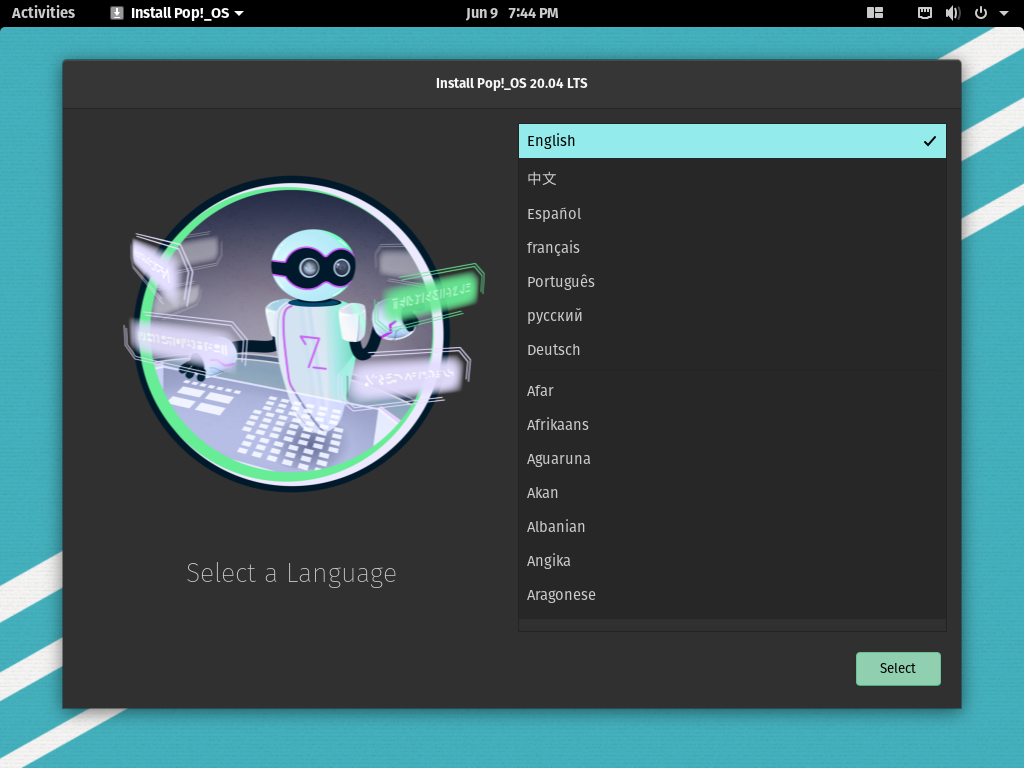


System76 has been bragging about Pop!_OS bringing ease of use and a friendly, open air to Linux ever since its first released version in 2017. This didn’t strike me as much of a brag, given that the company was starting with Ubuntu, widely known as the noob-friendliest of all distros—but I was wrong. This is easily the most inviting operating system installation procedure I’ve ever seen in forty years of computing.
The Pop!_OS installer uses colorful, cartoonish reimaginings of Golden Age sci-fi tropes to brighten up the installer. Fewer than ten pages are necessary to get through the entire installer, and no single page devotes more than 50 percent of its screen real estate to technical stuff. The net effect is to reassure the user implicitly that, hey, this stuff is easy—there’s no reason to be intimidated.
Despite its brevity—and devoting so much screen real estate to meaningless prettywork—the installer is friendly to technical people, too. The big graphic accents don’t make it difficult to maneuver through the actual technical bits. In a particularly nice touch for technophiles and sysadmins, the installer uses an embedded, themed copy of gparted for its custom partitioner.
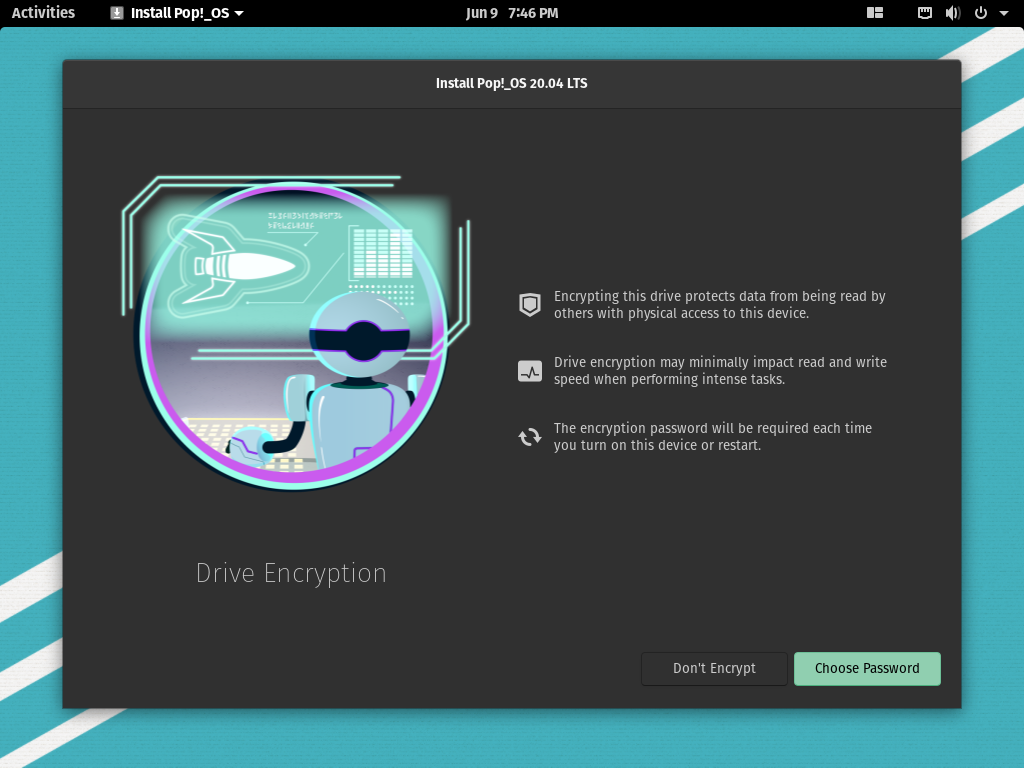

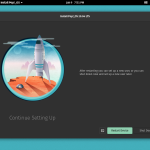
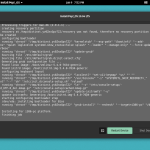
After partitioning, the installer offers optional drive encryption and does a good job of explaining what the benefits and potential problems of that encryption might be. When selecting an encryption passphrase, the installer warns the user about passwords that are too close to dictionary words—for example, I tried Password1! and was warned against it. Better yet, when I tried a long but entirely dictionary-derived passphrase—forty eighth bobbin under the magenta—it did not complain about the dictionary words, the lack of capitalization, or the lack of numeric or symbolic characters.
The installer finishes and asks to reboot before creating a new user profile but reassures you that it will ask you to create one after the reboot. This allows you to give someone a pre-installed, ready-to-go PC without having to resort to crude workarounds like a default profile named “Owner.” Finally, although it’s not obviously labeled, there’s an odd little button next to “restart” that will display the installation console log.
First boot
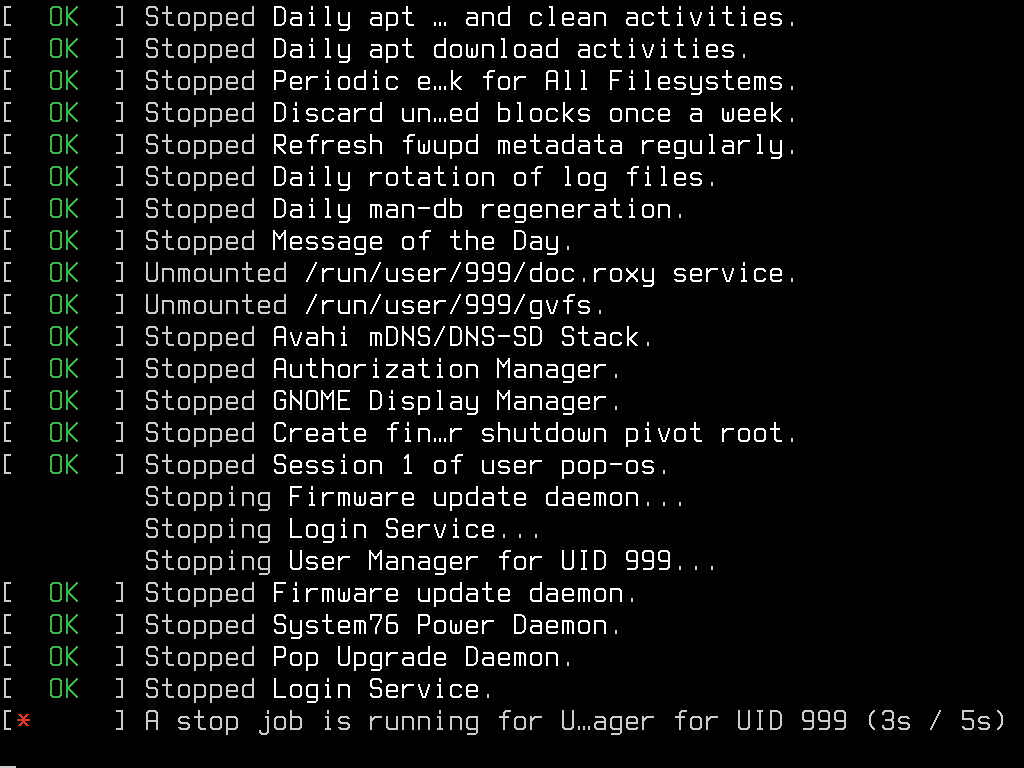

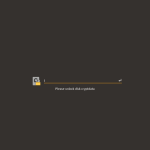
The first thing that will catch the eye of veteran Ubuntu users is the console boot sequence on Pop!_OS—it’s the exact same text one might be used to from a server (not desktop!) installation of Ubuntu, but the text has been significantly enlarged and rendered in a fun/funky “computer-y” square font. We think this was a better choice than desktop Ubuntu’s decision to just hide the whole thing behind a blank magenta screen—non-technical users aren’t left wondering uneasily if things are actually happening in the background or not, and more technical users get valuable diagnostic information as well.
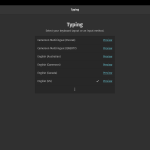
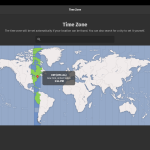
Once booted, a second setup wizard leads you through keyboard review, location services toggle, timezone setup, cloud services integration, and finally user setup. The user creation portion of the wizard warns the user about weak passwords, much as the disk encryption wizard did—and it turns out Hunter2 doesn’t make it any happier than Password1! did. I really like Pop!_OS’ password strength checker—no such checker is perfect, but this one gets less wrong and more right than I’m used to and will probably save quite a few users from themselves.
Exploring Pop!_OS
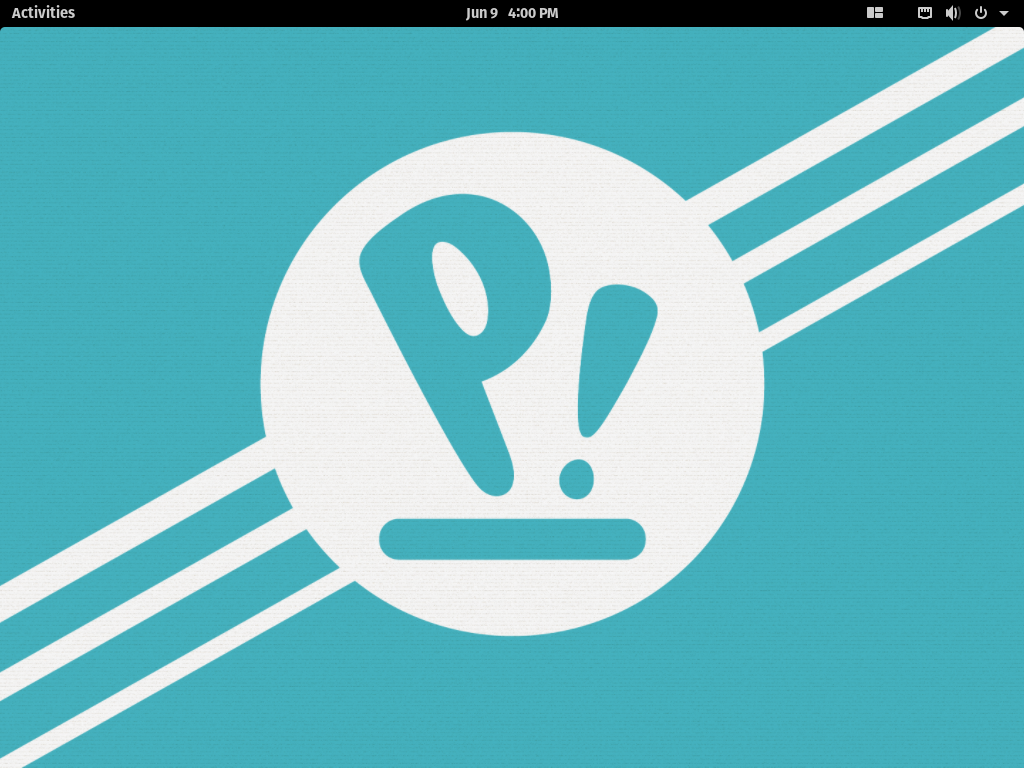
Once you’ve completed the second wizard and dropped into the actual desktop, you’re looking at what appears to be an almost bone-stock Gnome3 desktop—the launcher is hidden, the black global top menu bar is visible, and clicking Activities hides the desktop and presents you with a launcher stocked with enormous icons. Appearances can be deceiving, however—this version of the Gnome3 shell is much more heavily modified than Ubuntu’s, despite looking closer to the original.
The only thing I didn’t immediately recognize was an odd little button on the upper right that looks a bit like the Manjaro boot splash icon. Clicking this button drops down a menu informing you of a few useful keyboard shortcuts and offering a link to let you modify the rest of the keyboard shortcuts… and toggle tiling. Wait, tiling? Yep. Tiling.
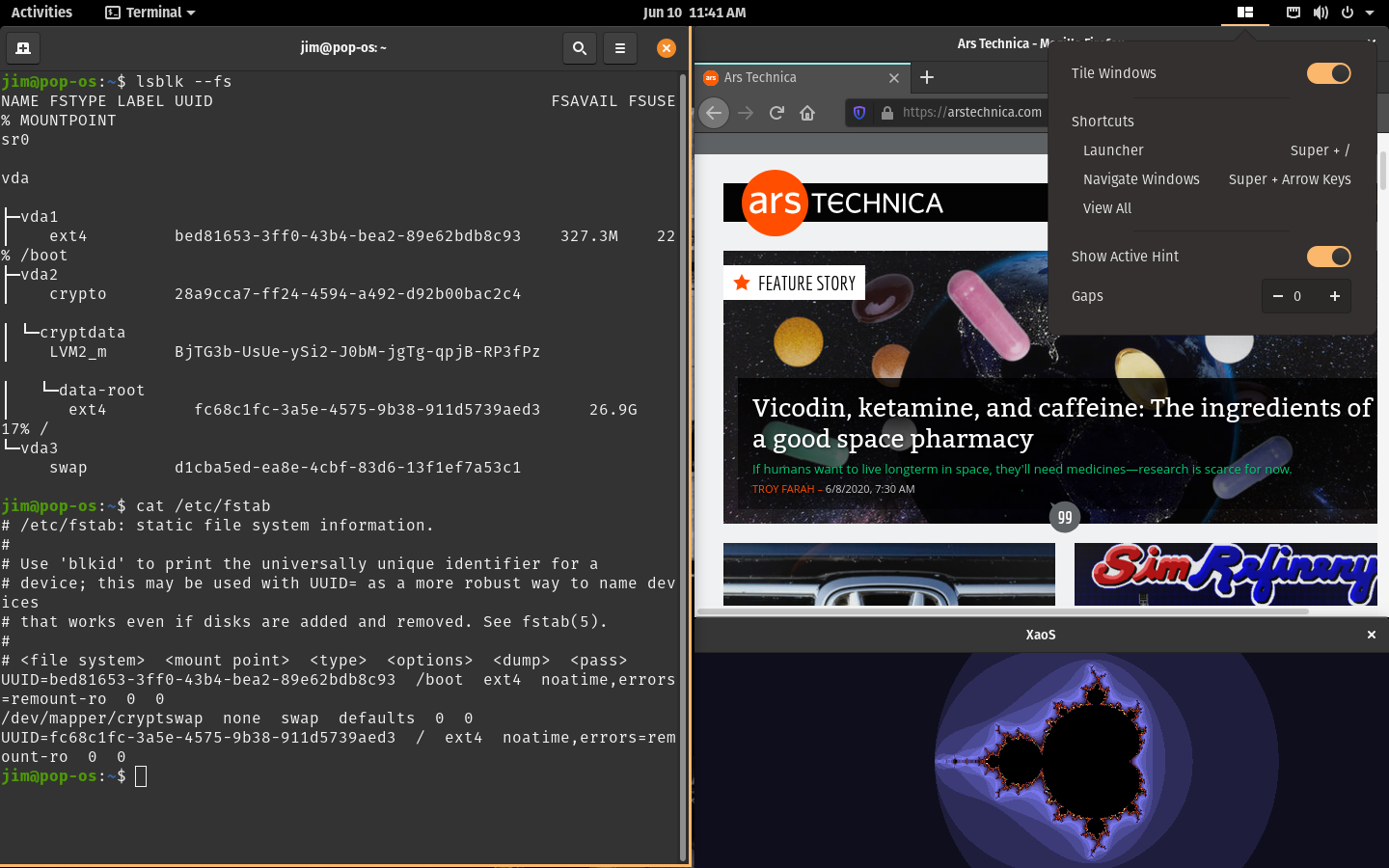
When you enable tiling in the little drop-down menu—which, in retrospect, shows an icon of a tiled desktop—nothing happens immediately. But when you open a second application, the first is shrunk to half the screen width, and the second is slapped next to it.
From here, everything about Pop!_OS’ tiling is intuitive and self explanatory—if you resize one window, the others around it expand or shrink to match. Dragging a window from one place to another on the desktop will rearrange the tiles along with it, and there really aren’t any surprises.
I will say that the tile function isn’t exactly beautiful. You can in theory set the gaps between windows in the tile management drop-down, but in practice, they frequently didn’t line up exactly right or in accordance to the gap. The sort of person who refuses to use anything but a Mac because nothing else is pretty enough will probably not like, or even be able to tolerate, the Pop!_OS tile management. For the rest of us, it’s simple and it works.
We don’t think the tile management is very useful on a full, modern desktop PC with two or more monitors—but it could easily be a godsend on a simple laptop, which, after all, is the majority of what System76 sells.
Adding software in the Pop!_Shop
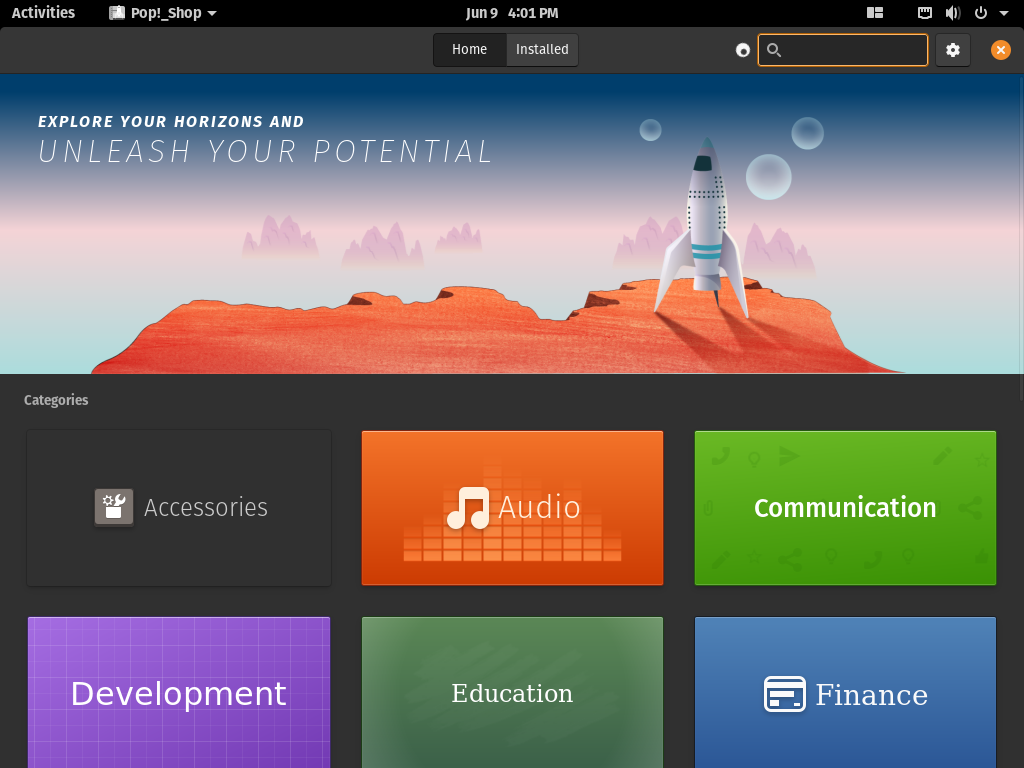

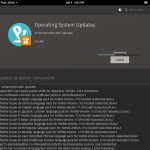
Pop!_OS styles its version of the Software Center as the “Pop!_Shop.” I don’t normally invest this much review attention into a Software Center because most are pretty much the same. Pop!_OS’ shop stands out, though, due to a degree of curation and attention that makes Ubuntu’s look sad and unloved.
One of the larger ways Pop!_OS diverges from its parent Ubuntu distribution is in support for non-native software packaging. Canonical uses its own home-grown system, Snap, for containerized non-native packages. Pop!_OS, instead, opts for flatpak support and sources its containerized packages from flathub itself.
For the most part, packages with both .deb and flatpak versions are shown as a single entry in the store, with a drop-down menu allowing the user to select between the two. Sometimes, whatever normally condenses these multiple entries fails, and you end up with two separate packages listed in the shop—such as with the audio editor Audacity—and the user must click into one randomly to figure out which is the flathub and which is the .deb.
Still, I applaud the attempt to disambiguate these things as much as possible for technical users while not intimidating the less-technical. I don’t personally have much of a dog in the fight between snaps and flatpaks—but while both are distro-agnostic in theory, it seems hard to deny that flathub is considerably more distro-agnostic in practice, with no direct link to any one distribution or vendor.
In addition to brighter, more cheerful theming and arguably better organization, the shop offers a wider selection of commonly needed, proprietary but “free as in beer” applications than Ubuntu’s software center does. One obvious example is the Zoom teleconferencing app—typing “Zoom” into the shop search takes you directly to the app’s installer. Ubuntu’s software center, meanwhile, leaves you high and dry—sure, you can still search for the app on the Web and then download and install it, but you’ll need to do that on your own, with no hand-holding from Ubuntu.
Will it Chrome? Will it ZFS?
The short answer to both of these questions, which I ask of every distro, is “yes, and just like Ubuntu does.” It’s worth remembering that under the hood, Pop!_OS almost entirely is Ubuntu. The installer is very different, and the tiling extension to Gnome3 shell is all System76—but the majority of the distribution not only comes from Ubuntu, it still comes directly out of Ubuntu’s own repositories.
The /etc/apt/sources.list doesn’t look much different than it did on my 2011-era Gazelle Pro—it’s the standard set of Canonical-managed repositories for Ubuntu 20.04, plus one additional repository for System76’s own stuff. The opinions of desktop Linux luminaries vary pretty strongly on how to interpret this—some see it as “leeching” from Canonical. Others (myself included) see it as a reassurance that things won’t get too funky—and more advanced technical workloads, guides, and recipes aimed at Ubuntu will work reliably in Pop!_OS.
The somewhat longer answer to these questions is, curiously, the same as the short one—”yes, it will Chrome and it will ZFS—but just like Ubuntu does.” Having found the Zoom app listed directly in the Pop!_Shop, I incorrectly assumed I’d find Google Chrome there as well. Despite already being in the system repositories, ZFS was also in neither the Ubuntu Software app nor in the shop.
Although Pop!_OS failed to improve on Ubuntu in either of these tasks, it didn’t get in the way. Searching the Internet for “Chrome download” and downloading the .deb works fine; Firefox under Pop!_OS pipes the downloaded .deb into Eddy rather than into Gdebi, but the process is otherwise the same, and with the same result—a properly installed Chrome, with properly installed Google repos added into sources.list.d.
Similarly, apt install zfsutils-linux immediately gets you an installed and working OpenZFS, just as it would in Ubuntu. We weren’t that surprised that Pop!_OS didn’t add any extra friendliness to OpenZFS installation—but we still find it curious that it didn’t hold a user’s hand in installing Google Chrome, despite doing so for Zoom.
Conclusions
I have to be honest here—I went into this review not expecting to like Pop!_OS. It seemed like a poor decision for a small OEM hardware vendor to commit to rolling its own distribution, the obnoxious name styling grated on my nerves, and I figured the end result would be somewhere between “I don’t hate it” and “I do hate it.”
Instead, the obvious attention to detail in graphic design, usability, and serious effort made to welcome non-technical users won me over—and the degree to which the child distribution doesn’t deviate from its parent Ubuntu when it doesn’t need to kept me there. The fine line System76 managed to successfully walk between courting non-technical users without alienating a hardcore sysadmin like myself is really something to see.
I was particularly struck by how similar System76’s motivation and outcome seem to be in relation to the original Ubuntu. When I first became an Ubuntu user in 2007, its claim to fame was, effectively, “Debian with the rough edges sawn off”—a system which unapologetically courted “normal people,” not just the Linux elite, and aimed to make day-to-day Linux desktop usage straightforward and simple.
In 2020, as Canonical’s focus has increasingly shifted toward the cloud, it appears that System76 is going back to Canonical’s roots. Although Ubuntu is still one of the most user-friendly distributions around, Pop!_OS has sawn many of its remaining rough edges off, in the same way Ubuntu did for Debian in the first place.
Although Pop!_OS’ optional tiling extension for Gnome3 is its roughest feature, the appeal for laptop users who don’t want to invest the effort into traditional tiling window managers is obvious. Laptop users with hybrid GPUs will also benefit from integrated and intuitive display switching support in the system bar.
The good
- Doesn’t diverge far enough from Ubuntu to make support from, by, or for Ubuntu users difficult
- Tiling window management is intuitive and simple
- The shop is the best version of a Linux software center we’ve seen yet
- Friendly and non-intimidating without “dumbing things down”
- Best OS installation routine we’ve ever seen
- Very non-Stallman-compliant
The bad
- Entirely dependent on Ubuntu upstream
- Very non-Stallman-compliant
The ugly
- Tiling is ugly, with inconsistent gaps
- Resizing tiled windows works but is a bit laggy and far from smooth
- No minimize or maximize buttons on window dressing
- The Cringe!_NAME factor is all too real
Contact Information:
JIM SALTER
Tags:
, Wire, United States, English
Contact Information:
JIM SALTER